
Introduce a product
Give a new release a recognizable silhouette in the opening frame. Follow with a detail shot that shows a hinge, finish, or control in use.
Sign in to claim 100 starter credits and begin creating
Starting inputs
Choose a starting point in happyWan based on the creative decision you have already made.
Write down who is there, where we see them, and the one thing that happens. Let the prompt establish both the picture and its movement.
Start from a product photo, drawing, or portrait. Use the image to set the look, then give happyWan directions for what moves within the frame.
Choose a first and a last frame when the ending matters. Describe how the subject or camera could travel between those two views.
Shot guide
A short sequence can show where a rider is headed, what they do, and how they feel when they arrive. In happyWan, give each shot a different job and carry a few recognizable details through all three.
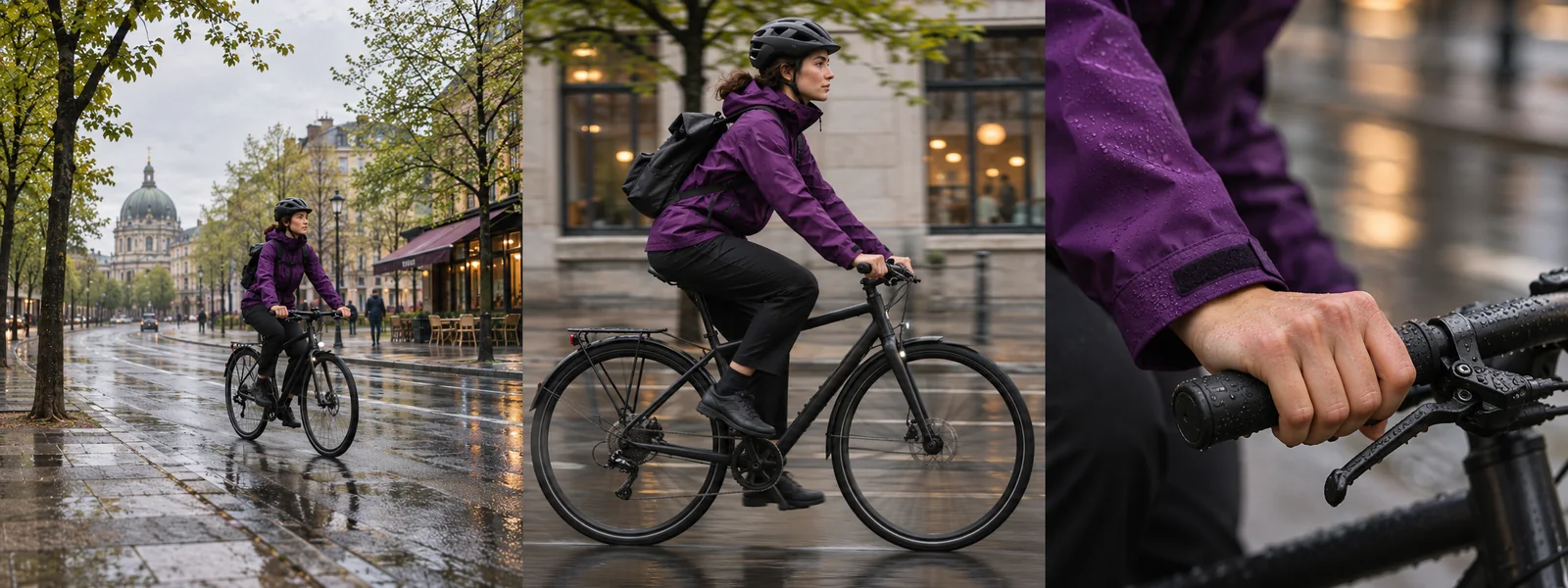
Give happyWan a wide opening view of the street with the rider already facing the turn. Leave room ahead of the front wheel so the viewer can anticipate where the bicycle will go.
A side-tracking shot keeps the rider in view while the shops slide past. Give happyWan the camera’s direction as well as the rider’s speed.
End with a hand squeezing the brake or a glance toward the destination. Keeping the jacket, bike color, and light consistent helps the cut read as the same trip.
Shot examples
Before writing a prompt, decide what the viewer needs to notice. A product reveal and a demonstration call for different camera choices in happyWan.
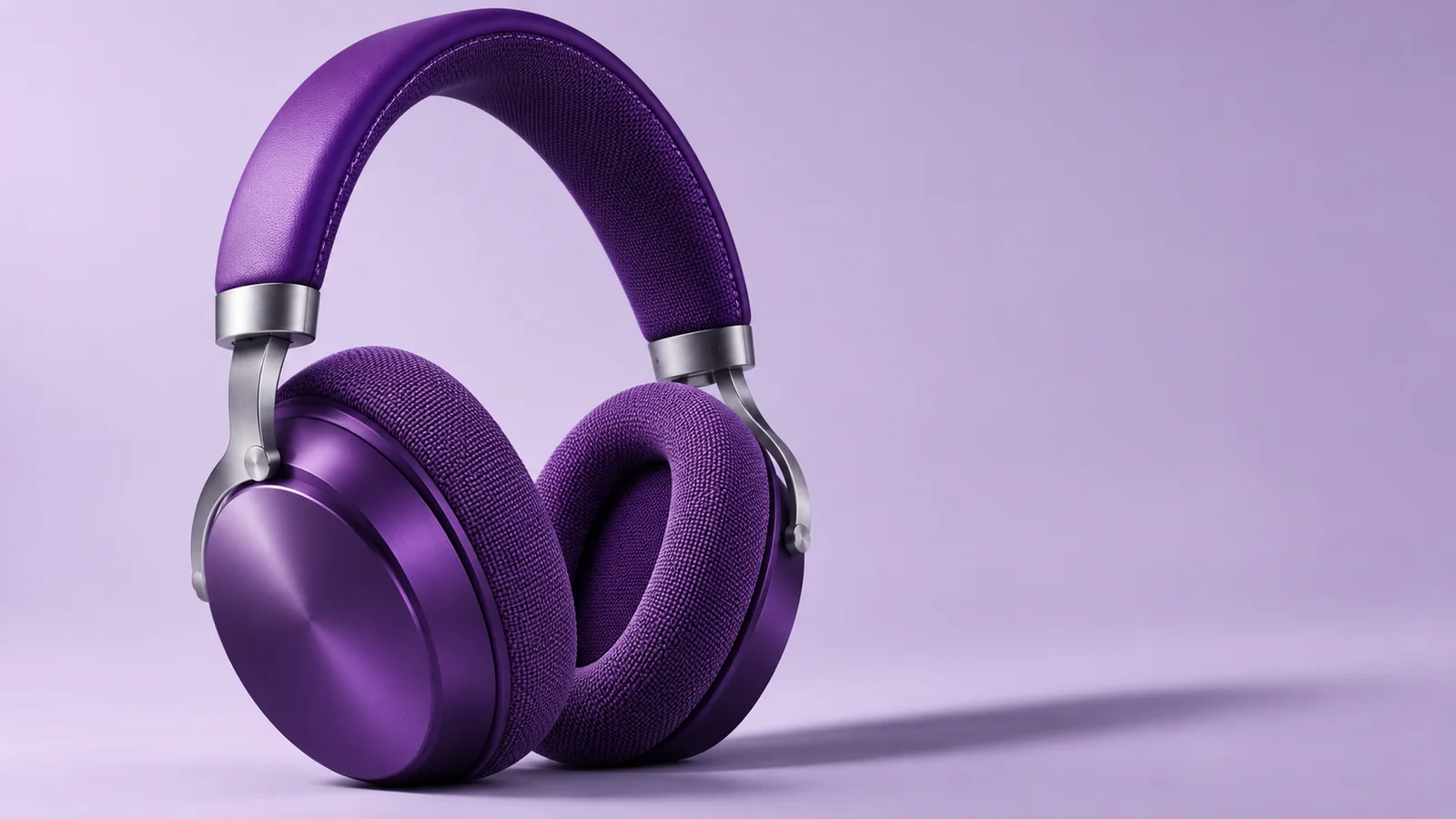
Begin with the full headphones in frame. Ask happyWan for a slow arc around one earcup as a soft reflection crosses its rim. End close enough to see the cushion texture. This gives an editor a clear point to cut to a product title.
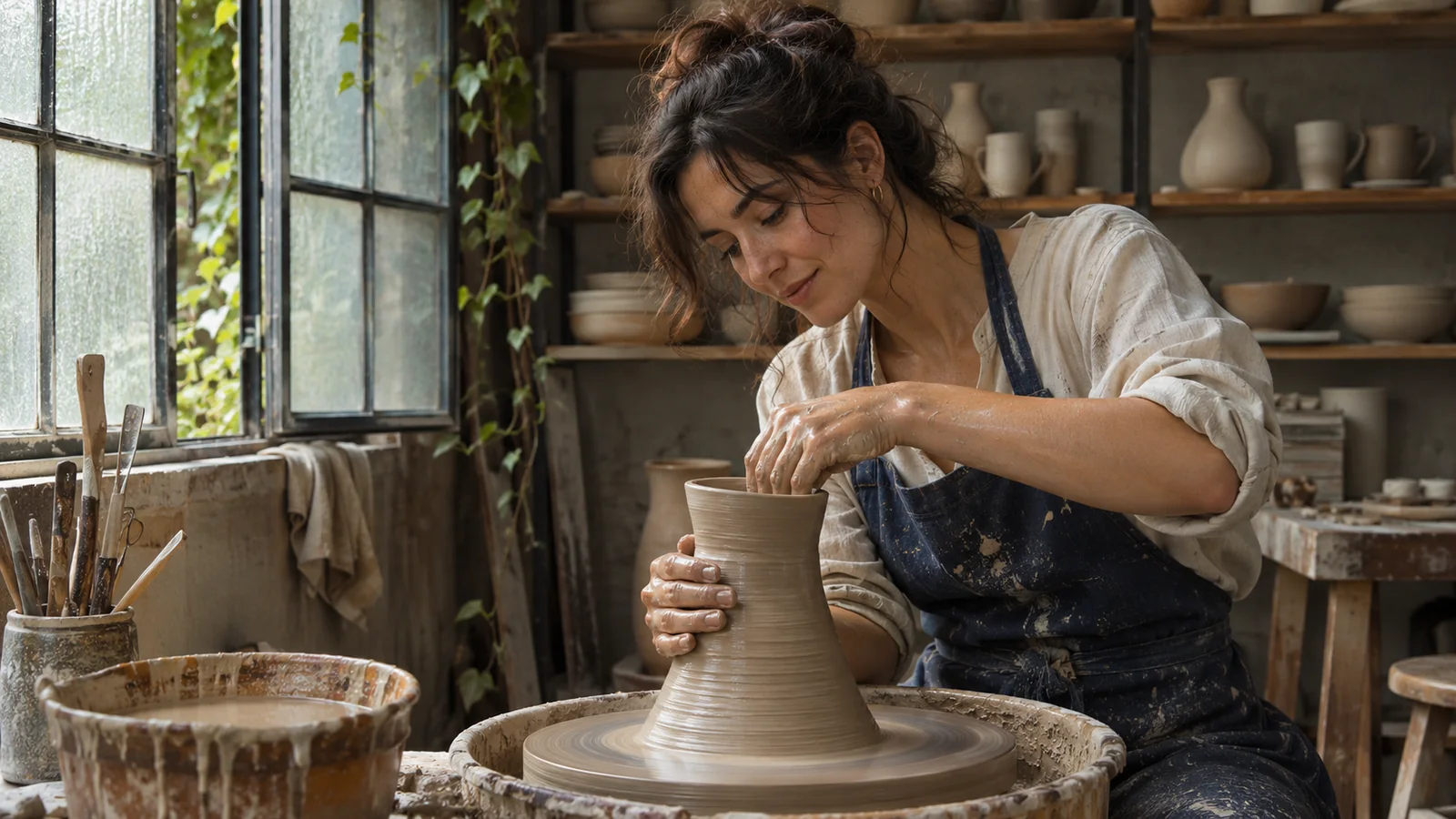
Frame the potter’s hands and the rim together. Hold the camera steady as the clay turns and the bowl opens. For a tutorial, this lets the viewer see how finger pressure changes the shape over time.
Workflow
Use a short first take to test the most important decision before spending time on a full sequence.
Give happyWan a visible event, such as a door swinging open to reveal a courtyard. Choose how much of the room the opening frame should show.
Select the mode for your prompt, image, or keyframes. Set the aspect ratio for the intended screen and check the credit cost shown for the task.
Play the take through. Find the instant when the action reads clearly and check whether the ending gives you room for a transition or caption.
Keep the original material and revise one instruction in happyWan. Compare a fixed camera with a slow push to see which makes the action easier to follow.
Use cases
Use happyWan to plan footage around the moment your audience needs to see.
Give a new release a recognizable silhouette in the opening frame. Follow with a detail shot that shows a hinge, finish, or control in use.
Separate preparation, the main action, and the result into distinct views. Use matching framing where viewers need to compare before and after.
Try the same character entrance in a wide shot and a close follow. Bring the two happyWan takes to a storyboard review so the team can discuss a concrete choice.
Place the action where it reads on a phone. Keep the first gesture in the center and leave space above or below for your final captions.
In a motion-reference mode, pair a character image with your own performance clip. Use happyWan to explore how a quick wave or a slow bow reads in the drawing. Check the hands and the final pose.
For a follow-on shot in happyWan, use the closing image of your first clip as the next opening. Match the light and direction of movement so the editor can cut during the action.
Working with references
Look for a shared subject or a plausible camera path. To move from a whole object to a detail in happyWan, use the same object in both frames and describe how the camera approaches it.
Choose a video mode with audio, then describe what the viewer should hear. A wheel humming under a potter’s hands calls for a different sound from footsteps echoing in a hallway. Listen to the generated timing before choosing the take.
Use the same clear reference in a reference-guided mode. Repeat a few visible details like coat color and hairstyle, then describe what changes in each shot. Inspect those details at the cut.
In a mode with multiple reference inputs, give each one a specific job. A portrait can guide the subject, a street photo can set the location, and a video can demonstrate a camera move. Tell happyWan which detail to take from each.
The happyWan workspace shows the options and credit cost for the selected generation. Use the plans below to compare recurring subscriptions and credit packs.
Choose a credit pack for a single storyboard or compare monthly and annual plans for ongoing work. Each option lists its credit allowance, billing period and included features.
Cancel anytime
Your first take
Bring one starting image or a few lines about the action. Decide where you want the camera to be when the shot ends.