
Set a direction with text
Describe a subject, viewpoint, and light source. Try the first version at the size where it will appear to see which details survive.
Use the happyWan AI image generator to prepare a storyboard, a product still, or an opening frame for video. Describe the picture from scratch or guide a new version with a reference.
Compose the frame
A storyboard needs a readable action. A product still needs a recognizable outline. Tell the AI image generator what the picture must communicate before choosing a style.
Describe a subject, viewpoint, and light source. Try the first version at the size where it will appear to see which details survive.
Use an image-input mode when the starting design matters. Tell the AI image generator which details to preserve and what to change, such as the background or camera angle.
Choose where the subject belongs and leave a quiet area for type. A centered portrait and a product page with a headline need different crops.
Visual briefs
Use the AI image generator to make a picture you can evaluate against a specific brief.
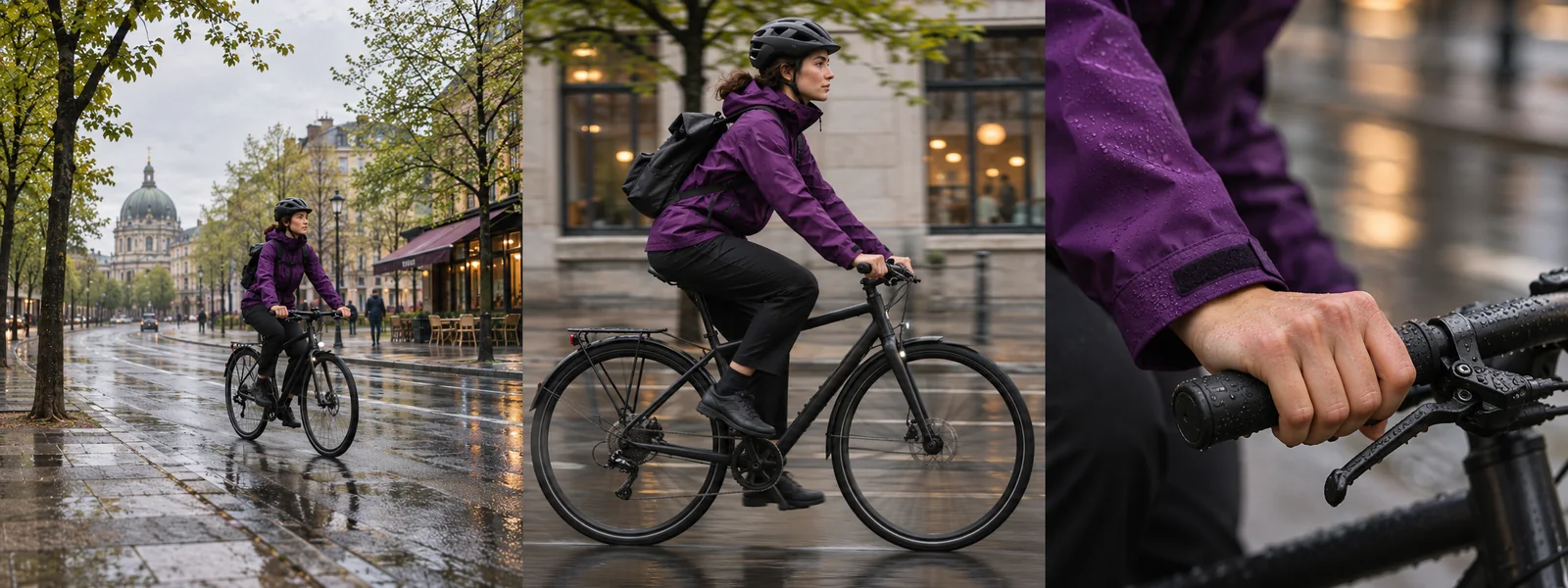
Describe the same rider in a wide street view, a medium side view, and a close detail. Check that the bike and clothing read as the same subject in each.
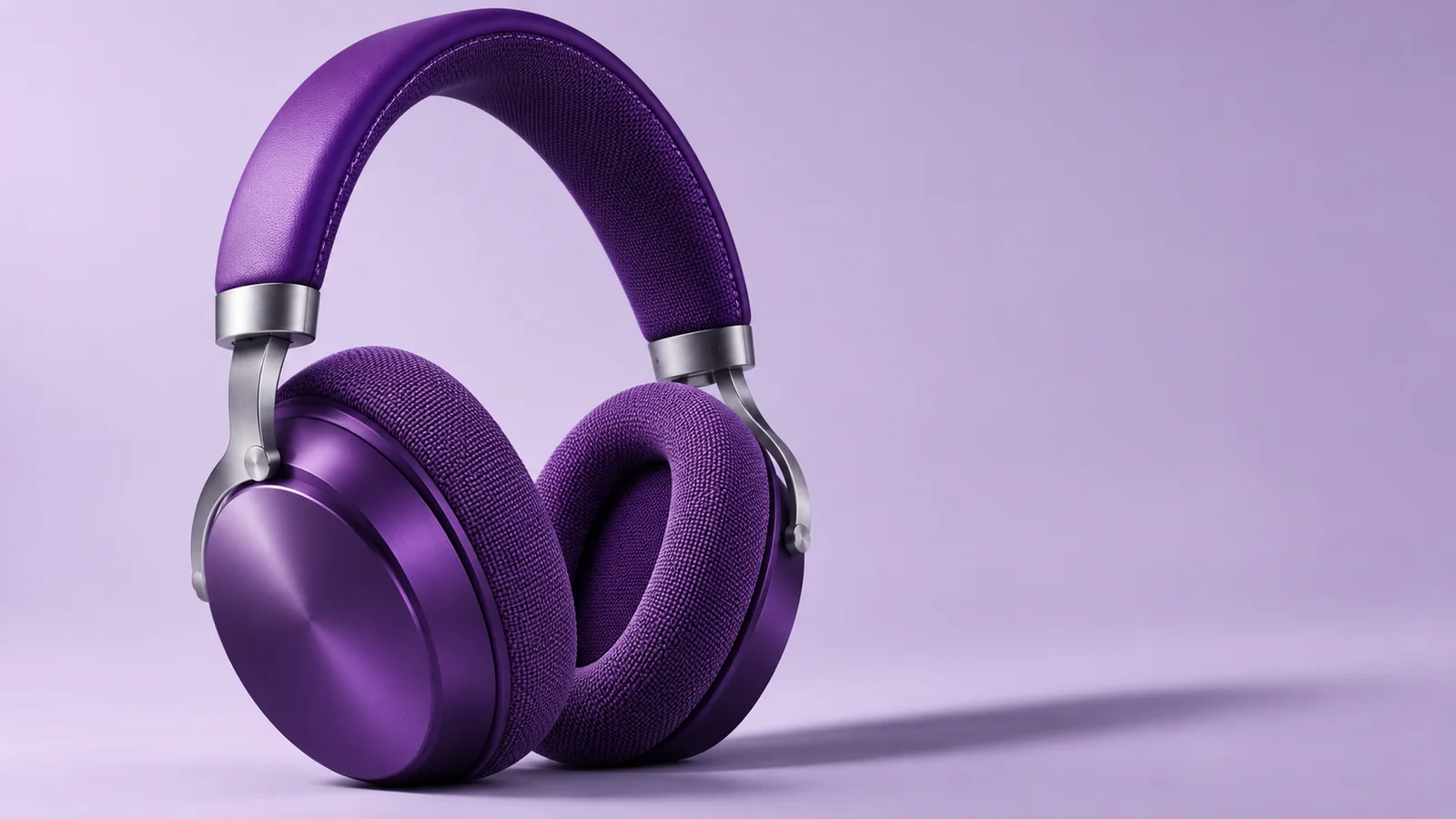
Light the violet headphones from the side so the cushion and hard shell read differently. Inspect the outline and how the two materials meet.
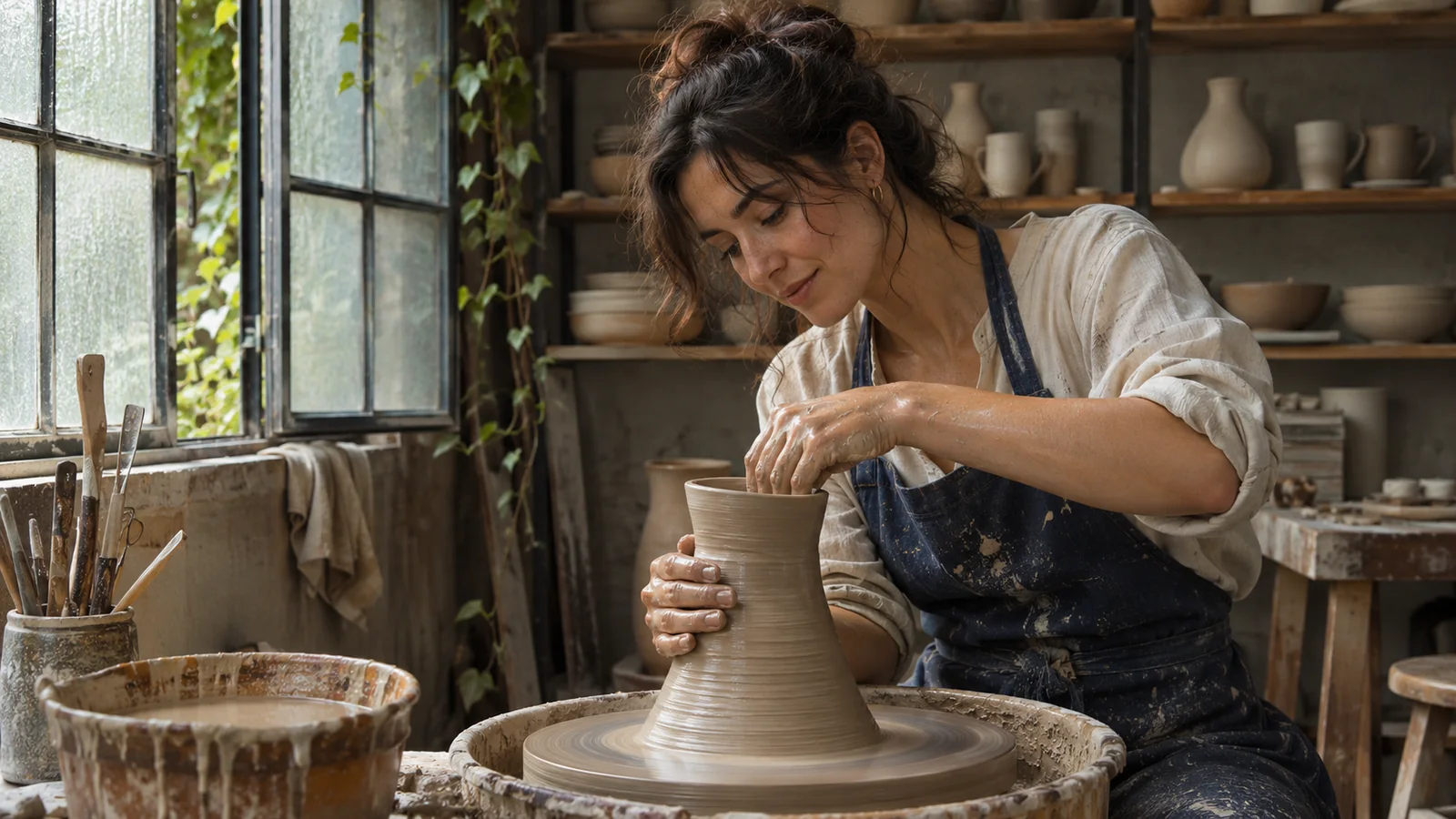
Show both hands and the clay bowl with room for the hands to move upward. This framing gives a later video task a clear starting point.
Image workflow
Use the AI image generator to settle the composition before refining details for your final layout.
01
Name the main subject and where it sits. Describe what the viewer sees at the edges as well as in the middle.
02
Select an image model and input mode in the AI image generator. Choose a suitable aspect ratio and check the credit cost before submitting.
03
Review the silhouette as a thumbnail, then open the image to inspect faces, edges, or product details that matter in the finished piece.
04
Keep the framing you like and ask the AI image generator for one change, such as softer shadows. Compare the new image against the same brief.
References and output
Choose a side for the subject and describe the empty background on the other side. Add the final lettering in your layout tool so the text fits precisely.
Leave room around whatever should move. Keep the starting pose clear, then use the saved image in a video mode that accepts image input.
Select a mode that supports an image reference. Give the AI image generator the original image and describe the new setting. Compare the outline, colors, and distinctive details with the reference.
The chosen model and settings determine the generation cost shown before submission. Downloading images requires a valid paid entitlement.
Create with happyWan
Open the AI image generator with a scene, a subject, and a destination for the finished picture.