
Open on an action
Bring the viewer straight into the scene with an easy-to-read event. A cyclist entering an empty frame tells the viewer where to look in the first moment.
Make the clip your edit is missing with the happyWan AI video generator. Start with a written scene or image, then decide what happens between the opening view and the cut.
Plan the motion
Choose the kind of shot you need before picking settings. A useful take might be a single gesture, a transition, or a look at something the audience has yet to see.
Bring the viewer straight into the scene with an easy-to-read event. A cyclist entering an empty frame tells the viewer where to look in the first moment.
In a mode that accepts first and last frames, provide both views and describe how they connect. Use a steady push to move from a whole object to a single detail.
Tell the AI video generator when the action settles. A quiet ending gives you space to hold a title or cut to the next scene.
Example briefs
Use these briefs in the AI video generator to compare a tracking shot, an orbit, and a fixed camera.
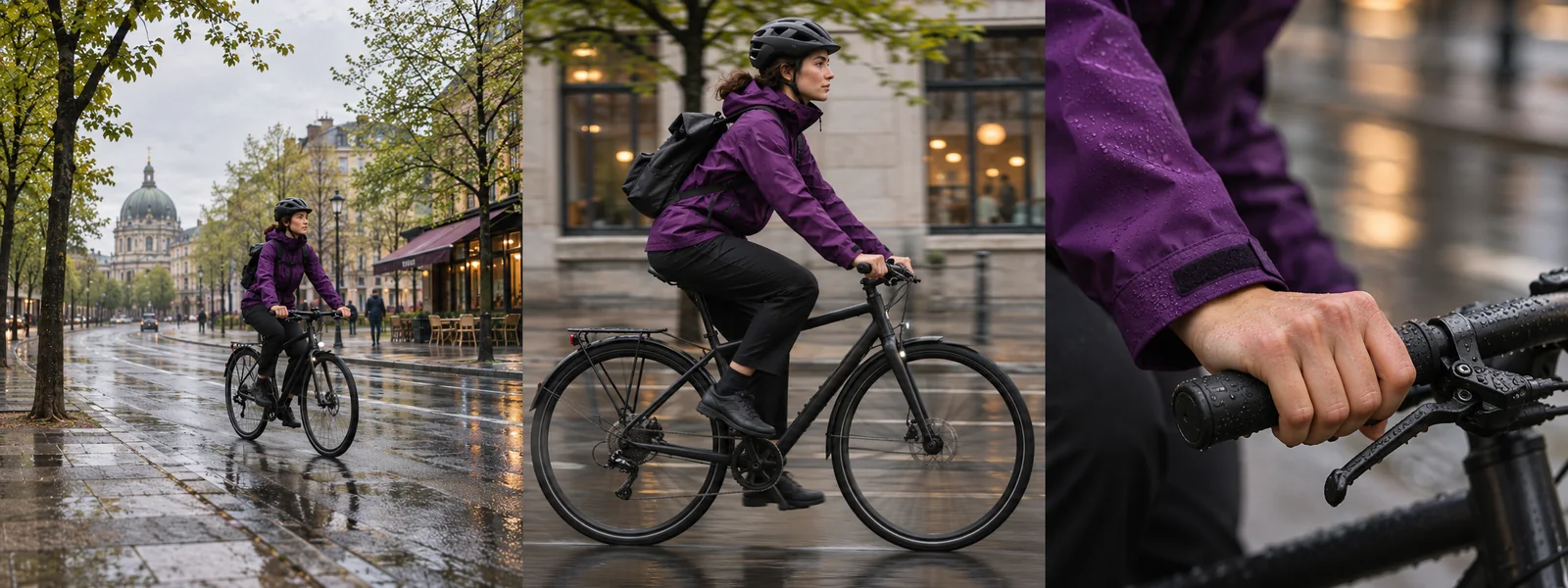
Move alongside the cyclist at the same speed. Let the street slide through the background while the rider stays easy to follow.
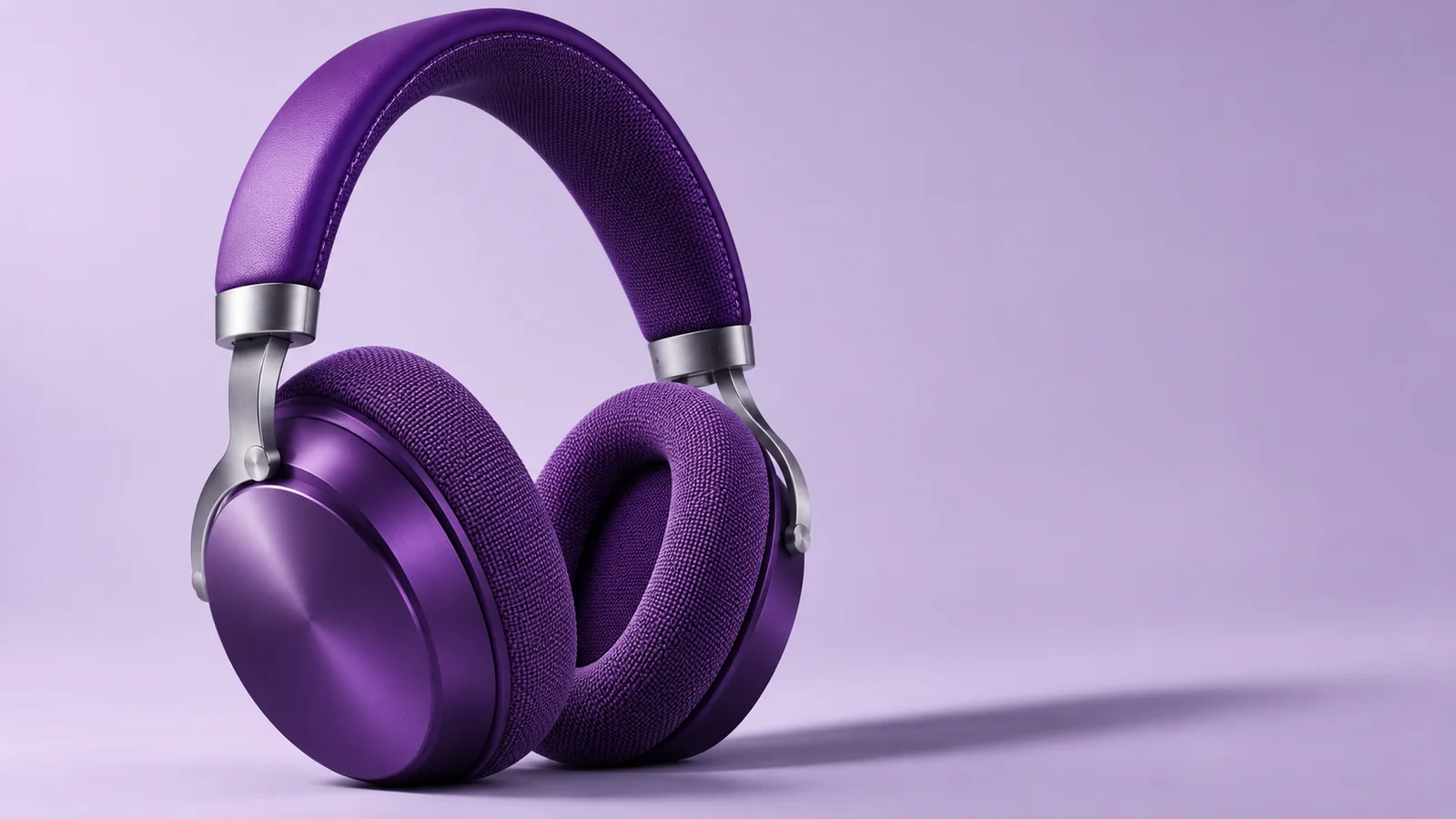
Frame the headphones against a plain backdrop. Arc around the earcup until its edge catches the studio light.
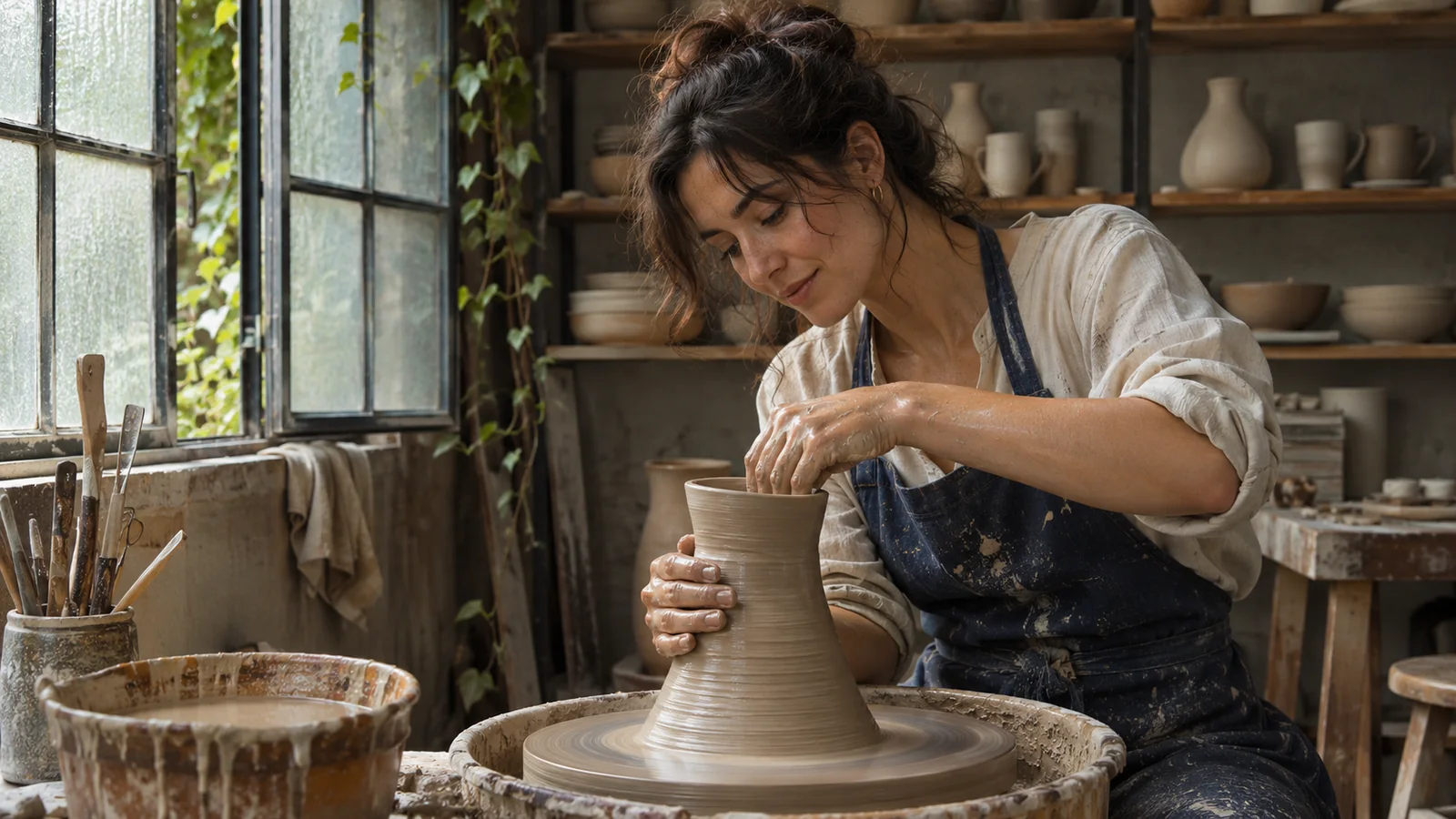
Hold on the clay and the potter’s hands. The wheel supplies the movement, so every change to the rim remains visible.
Create a take
A short, focused task in the AI video generator makes it easier to see which direction works.
01
Pick the aspect ratio in the AI video generator for the screen where the clip will appear. Review available durations and the displayed credit cost.
02
Write a prompt for a fresh composition. If the first view is settled, select an image-input mode and describe what should happen to the scene.
03
Submit the task after signing in. Watch it once at normal speed for timing, then check the opening and closing frames.
04
Use the same brief in the AI video generator with a single change, such as a slower pan. Keep the take that gives the viewer enough time to read the action.
Settings and delivery
Give the camera a position relative to the subject. “Follow beside the bicycle” asks for a different view from “hold at the corner as the bicycle passes.”
Use the same subject reference where the selected mode accepts one. Keep the setting and direction of travel consistent, then cut when the viewer’s attention has a reason to shift.
The AI video generator shows the controls for your selected model and mode. If sound is available, describe the source and listen to its timing. Choose the duration in the settings.
The task shows its credit cost before submission. Video downloads require a valid paid entitlement. Compare the plans to see the options for your account.
Create with happyWan
Open the AI video generator with a clear opening view and one change you want the audience to notice.